Section 1
Select the Correct Input Mode
Before troubleshooting specific bugs, ensure the game knows what type of controller you are using. Many issues (like "rates" not appearing or buttons acting weird) happen because an FPV radio is set to "Gamepad" mode.
For FPV Radios (Radiomaster, DJI, FrSky, etc.)
- Make sure you are on Realistic FPV mode. You can verify this if you see the FPV icon in your game mode select menu.
- If you do not see this icon, go back to Controls and select Realistic → FPV mode.
- Crucial Step: Select FPV Controller (left option), not Controller/Gamepad.
- "Rates" are only available in this mode.
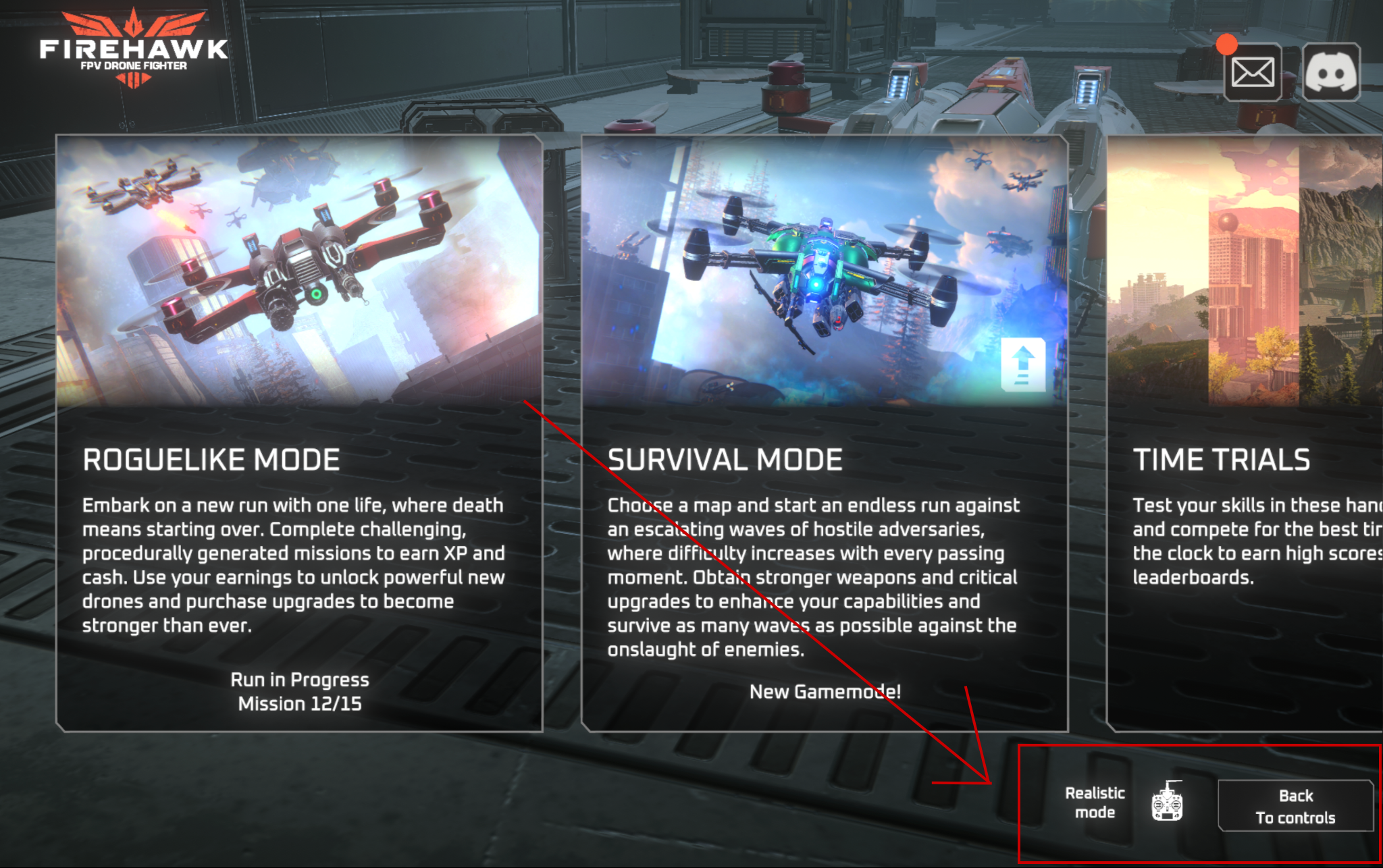
Game mode select menu — look for the Realistic mode icon in the bottom right.
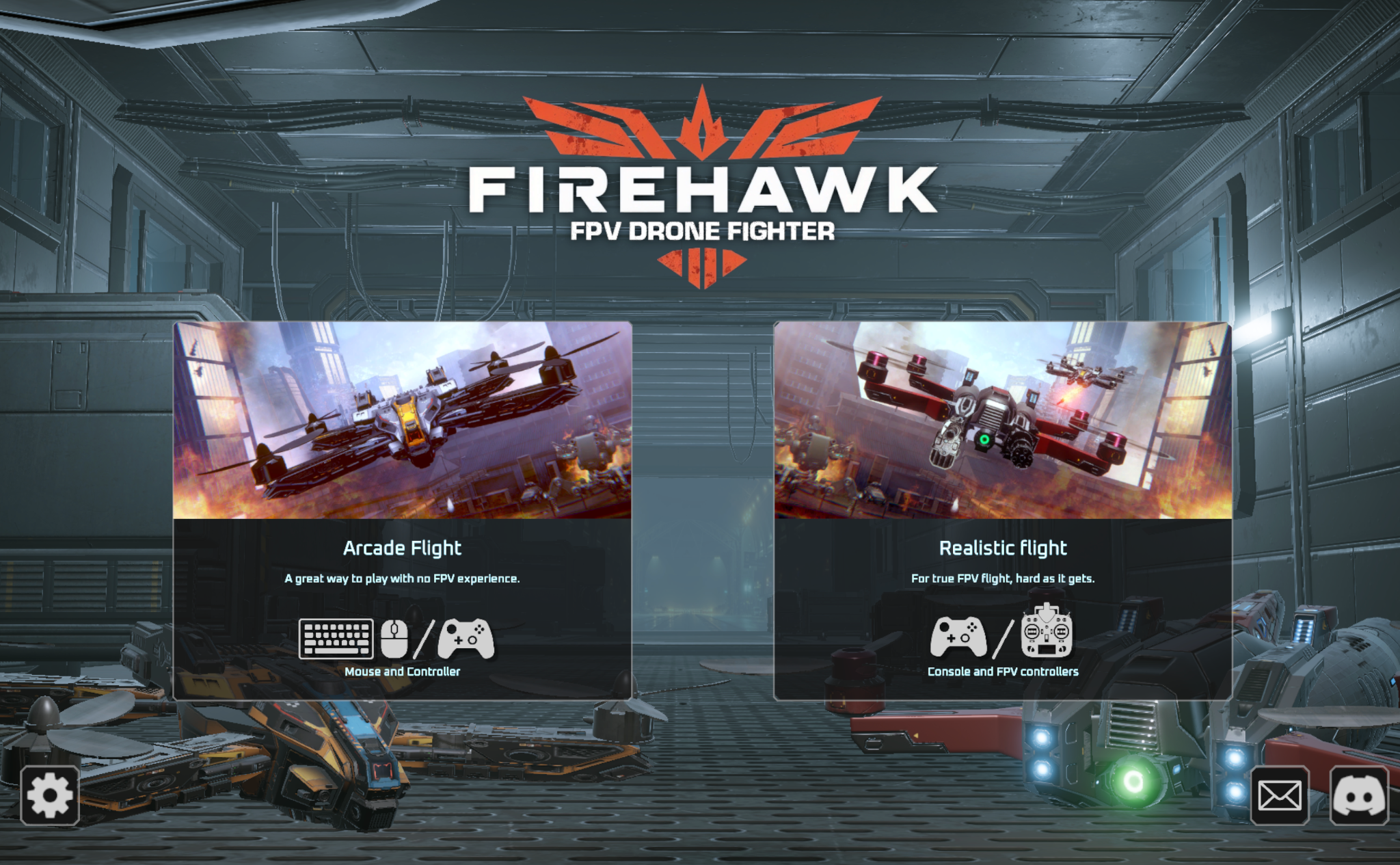
Select Realistic flight, then choose FPV Controller (left option).
For Console Controllers (Xbox, PS4/5)
- Select Arcade or Realistic, then choose Gamepad/Controller.
- You will use "Sensitivity" sliders rather than "Rates".
Section 2
Controller Detection Issues
Step 1: Windows Verification
- Visit hardwaretester.com/gamepad to ensure your OS and browser detect the inputs correctly.
- If hardwaretester doesn't see it, the game won't see it. Double check the cable you are using — not all USB-C cables allow FPV controllers to send input to your PC.
Step 2: Conflict Resolution
- Unplug other peripherals (steering wheels, pedals, other joysticks). The game system may prioritise the wrong device.
- Disable "Steam Input" (see the Linux section below, but this also applies to Windows users with driver conflicts).
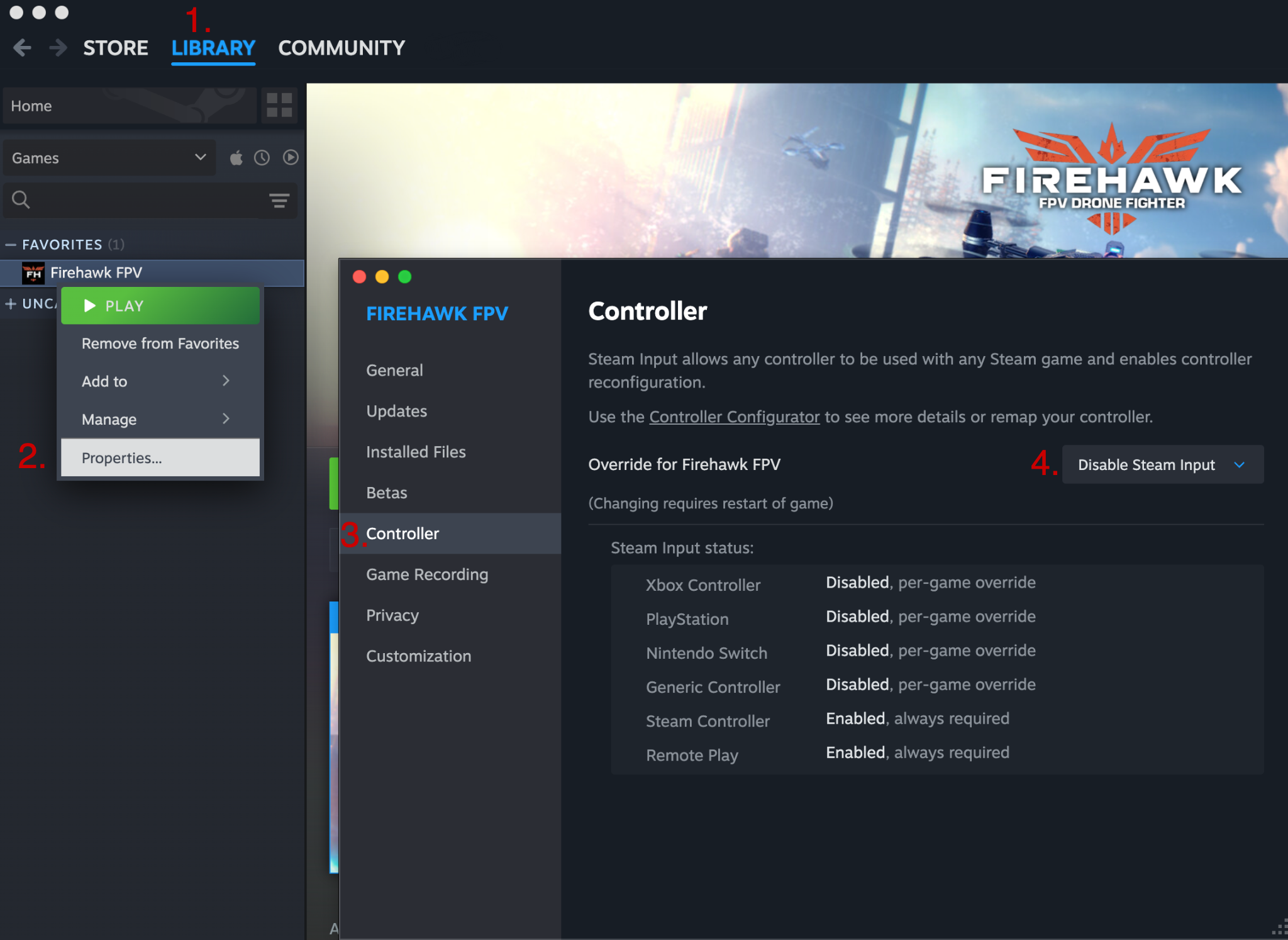
Steam Library → right-click Firehawk → Properties → Controller → Disable Steam Input.
Step 3: Connection Timing
- Ensure your controller is connected and turned on before launching the game.
- If it disconnects mid-game, the game may not re-detect it until a restart.
Section 3
Calibration & Axis Issues
Solution A: Auto-Calibration
- Go to Settings → Auto Calibration (not available during a run). Follow the on-screen prompts to move sticks to their extents.
- Note: This is found in the main menu/loadout screen, not during a run.
Solution B: Manual Configuration
- If Auto-Calibration fails, go to Controls/Calibration.
- Click the action (e.g. Throttle), then move the corresponding stick. Check the axis number that appears (e.g. Axis 2).
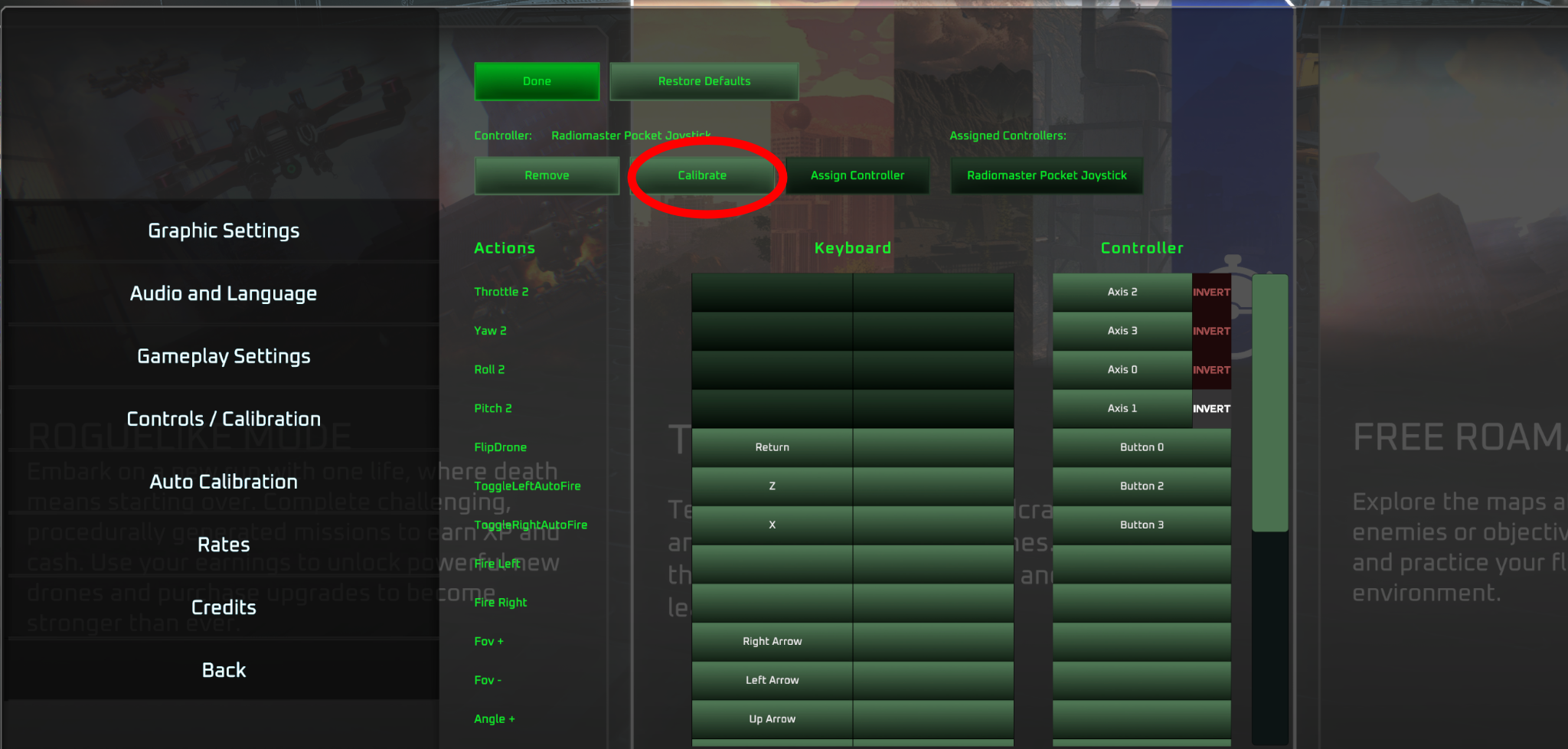
- If the calibration still feels off, click Calibrate to calibrate individual axes.
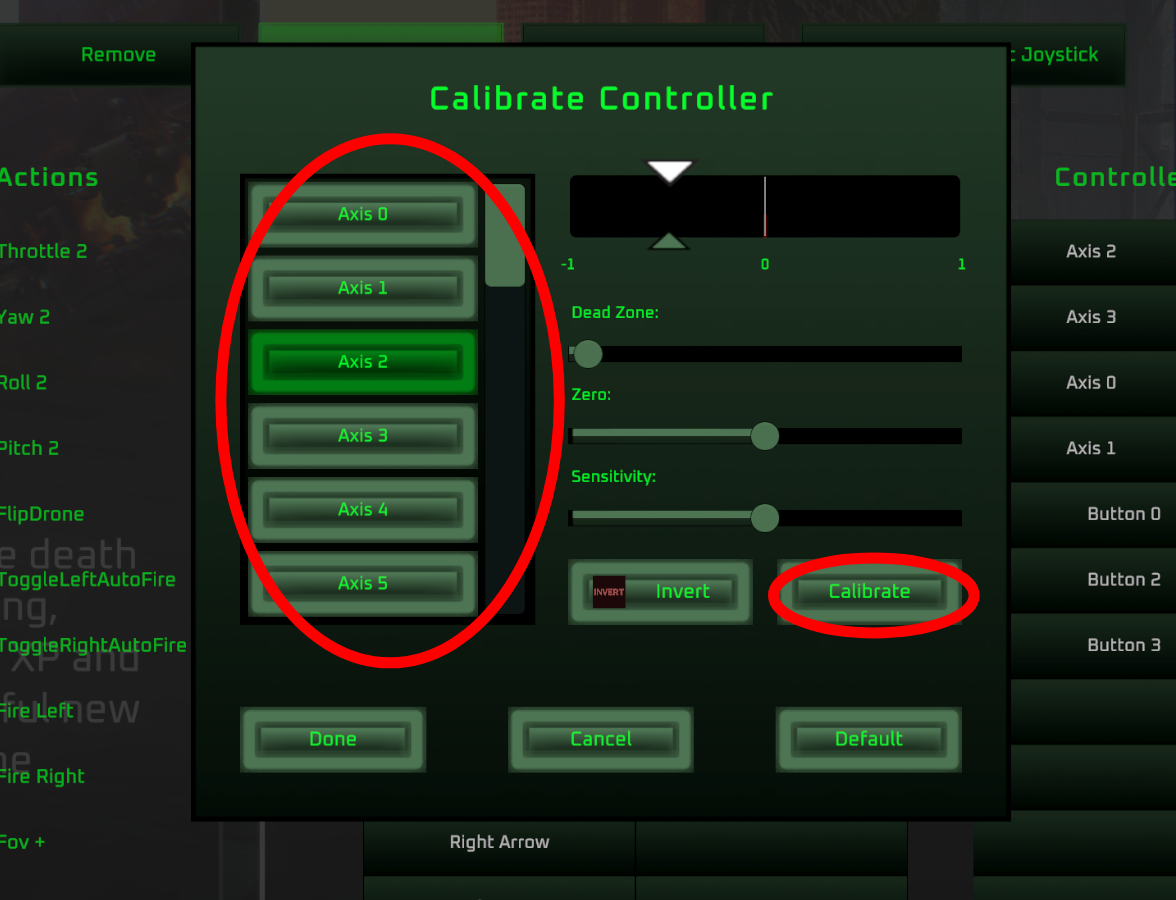
Controls/Calibration screen — click Calibrate to fine-tune individual axes.
Use hardwaretester.com/gamepad to identify which stick is not getting recognised, then find the corresponding axes in the calibration window and press Calibrate.
Calibrate Controller window — select the axis and calibrate its full range of motion.
Solution C: The "50% Throttle" Fix
If your throttle does nothing until the centre stick position, or acts like a button:
- If you are on Linux or use Proton, skip to the Linux section below.
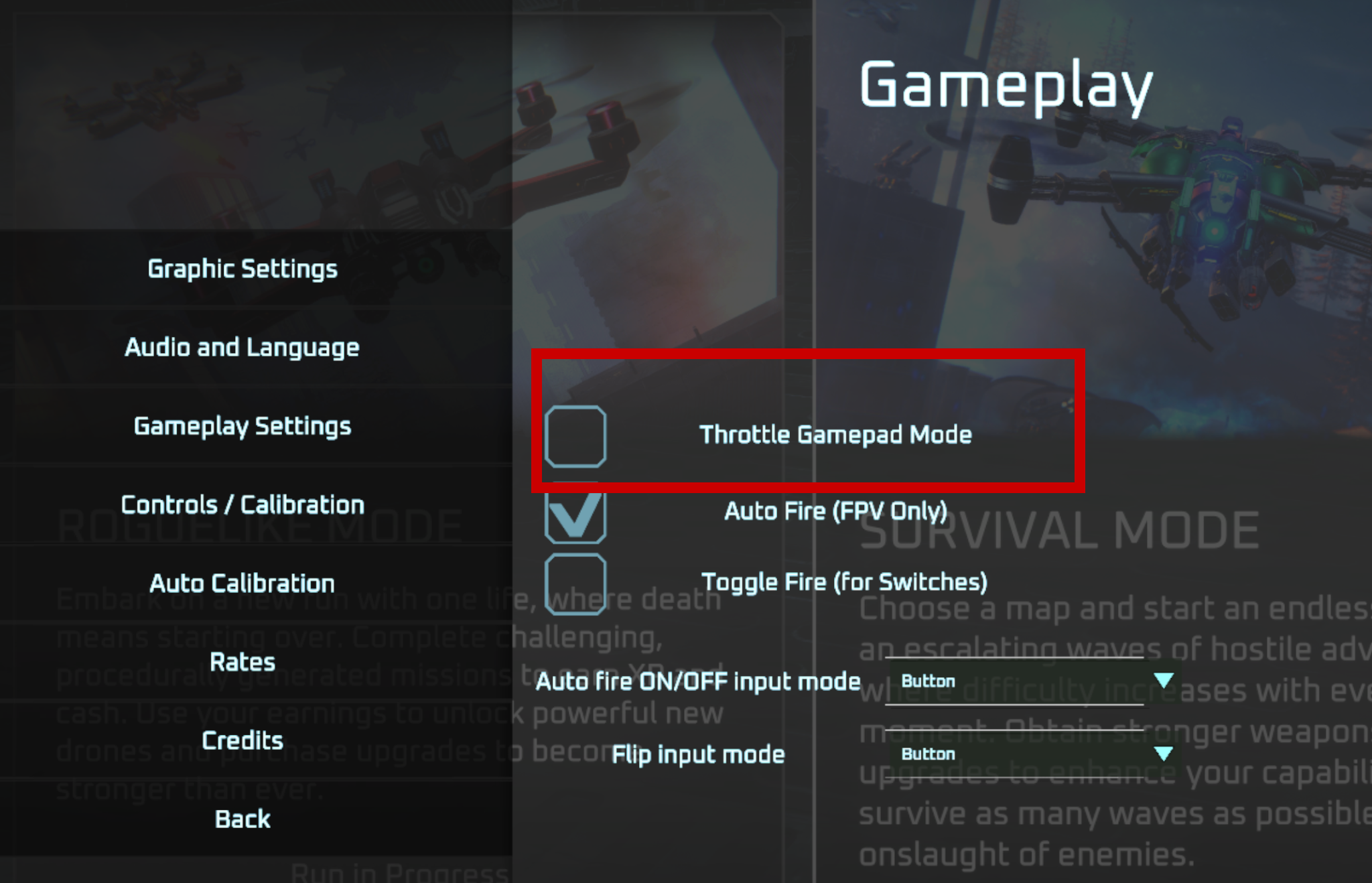
- Go to Gameplay Settings.
- Turn OFF "Throttle Gamepad Mode". This setting is for Xbox controllers that use triggers (which rest at 0) rather than sticks (which rest at -1 or centre).
Gameplay Settings — uncheck "Throttle Gamepad Mode" for FPV controllers.
Solution D: Inverted Pitch/Roll
- In the Controls menu, check the "Invert" box next to the specific axis behaving backwards.
Check the INVERT box next to any axis that is behaving backwards.
Section 4
FPV Radio Specifics (Radiomaster, DJI, FrSky)
Mapping Switches (EdgeTX/OpenTX)
- The game cannot see a physical switch unless your radio transmits it as a "Channel".
- Go into your radio's internal model settings (Mixer/Inputs) and assign a switch (e.g. Switch SA) to a Channel (e.g. Channel 5).
- Once mapped on the radio, use Manual Configuration in-game to bind that channel to an action (like Flip or Toggle Fire).
DJI Controllers
- If experiencing offsets (stick not centred), use the Calibration button inside the Input Mapper menu to zero it out.
Section 5
"Flip Drone" / Reset Issues
Cause: This is usually a mode mismatch. If you are using an FPV radio but the game is in "Console Mode," it waits for an Xbox "A" button input.
Solution:
- Ensure you are in FPV Controller mode.
- The default key is usually Enter on the keyboard.
- You can remap "Flip Drone" to a switch on your radio in the Controls menu.
Section 6
Linux / Proton / Steam Deck Specifics
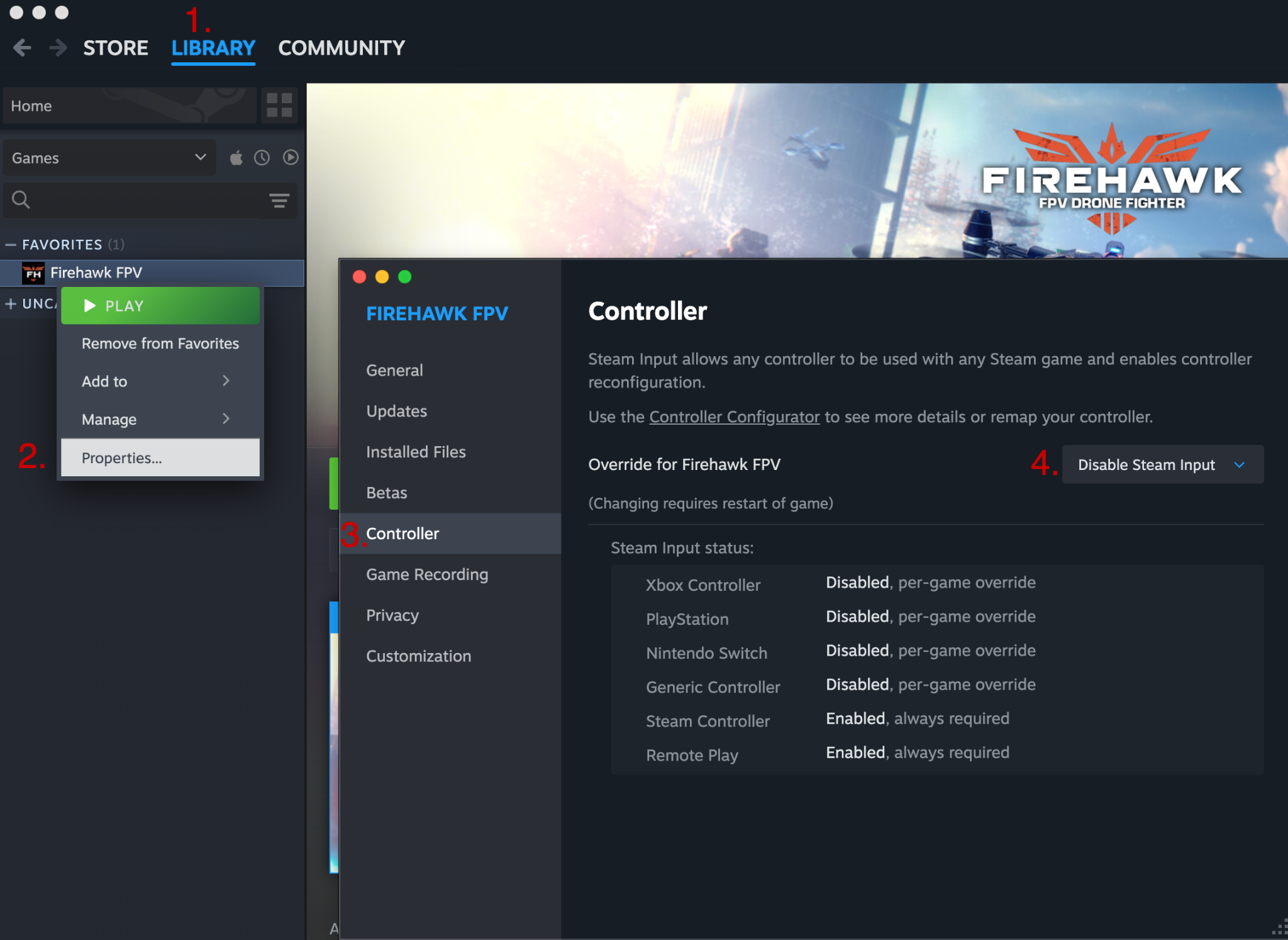
6.1 — Disable Steam Input
- Go to your Steam Library.
- Right-click Firehawk → Properties.
- Select Controller.
- Set the dropdown to Disable Steam Input.
- Restart the game.
Steam → Properties → Controller → set Override to "Disable Steam Input".
6.2 — Controller Misidentified as Xbox
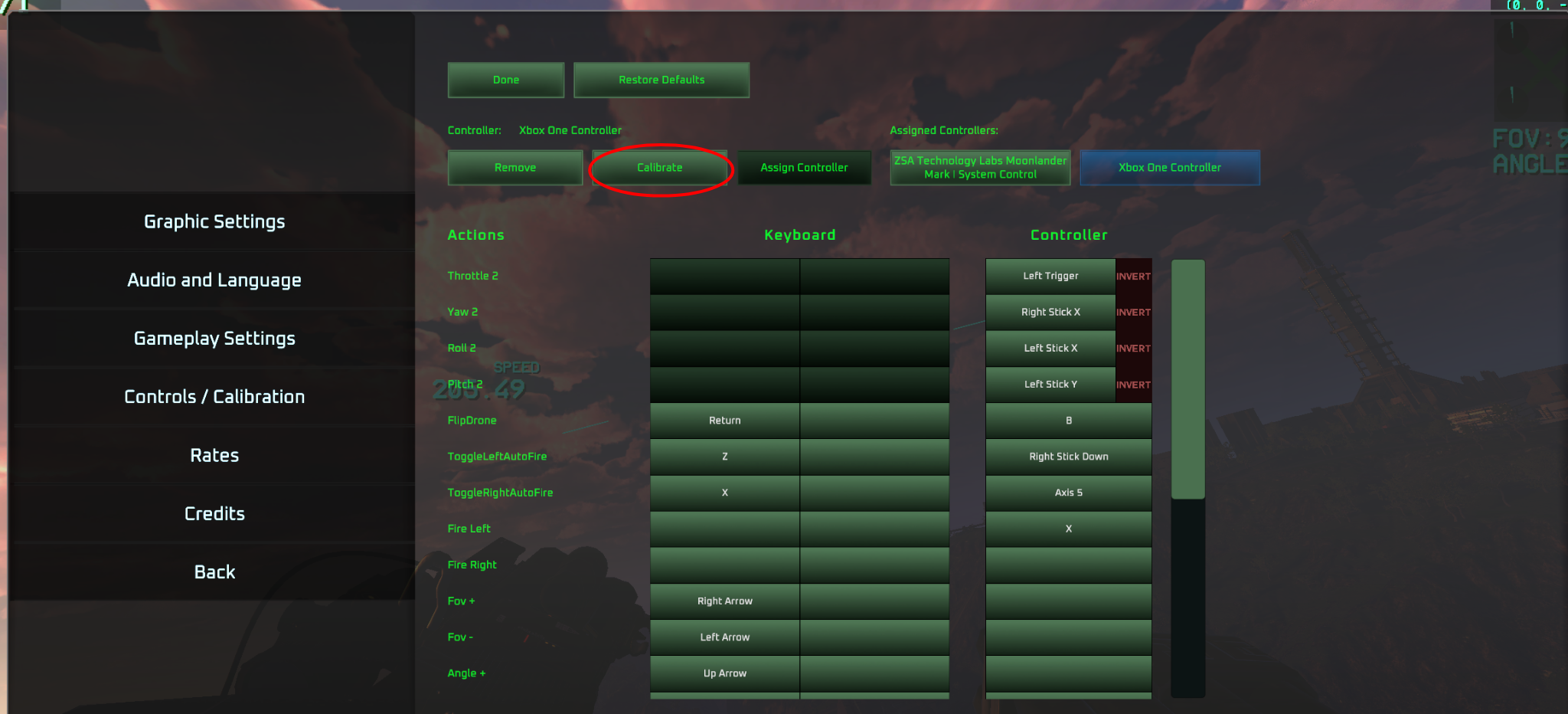
The game might still recognise your controller as an Xbox pad and map your Left Trigger to throttle when you move your left stick. Your roll will also probably be inverted.
This is fine — it's just the name assigned to the axis, but it is actually detecting your left stick. However, you do need to re-calibrate the Left Trigger (actually Left Stick) axis so it uses the whole range of motion.
Click the Calibrate button to calibrate the Left Trigger (actually left stick) to use the full range of motion.
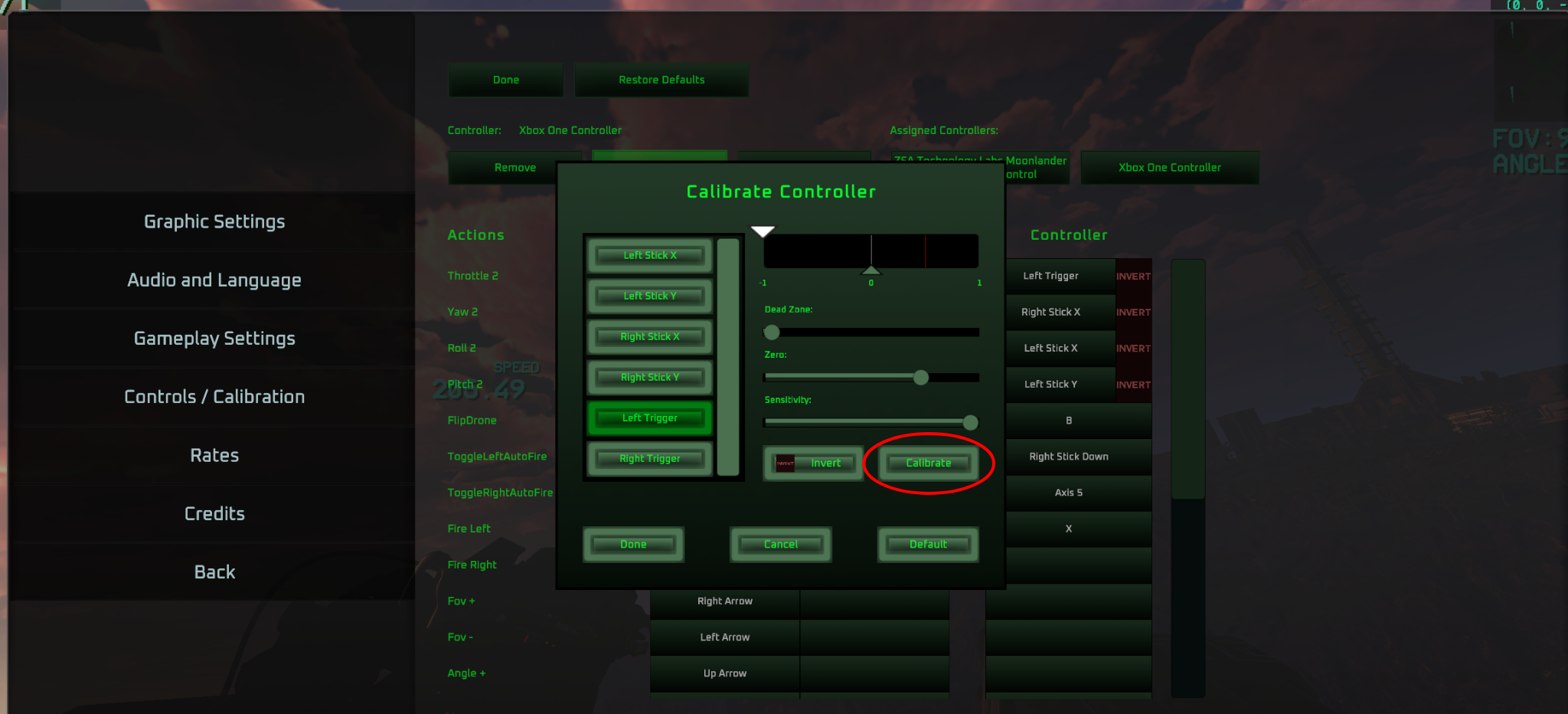
Controls/Calibration screen when controller is misidentified — click Calibrate to fix axis range.
6.3 — Enable Advanced USB Joystick Mode
Check the USB profile of your radio with sudo dmesg
Add a udev rule in /etc/udev/rules.d/99-opentx.rules:
Make sure you are in the input group (need to logout/login afterward):
Reload udev rules:
You may also need to add a launch option for the game on Steam:
Section 7
Menu & Mouse Issues
Cause: The game is detecting a connected controller axis (often a throttle or potentiometer) as a mouse input.
Solution:
- Unplug any secondary controllers (gamepads, steering wheels).
- Try Alt-Tabbing out of the game and back in.
- If using an FPV controller, ensure you are not in a mode that emulates a mouse cursor (the devs disabled virtual mouse for FPV to prevent this, but legacy settings might persist).
Still Stuck?
If none of the above works, go to Controls → Calibration and hit "Default" to reset everything. If the issue persists, report a bug with your OS, controller model, and a screenshot of your Controls screen.
 Discord Bug Report